
Create or edit a follow-up policy
Make your own follow-up policy to choose the days, channels and wording of your reminders, in your own tone of voice.
Who can do this: team members whose role lets them manage follow-up policies. Everyone can see the policies.
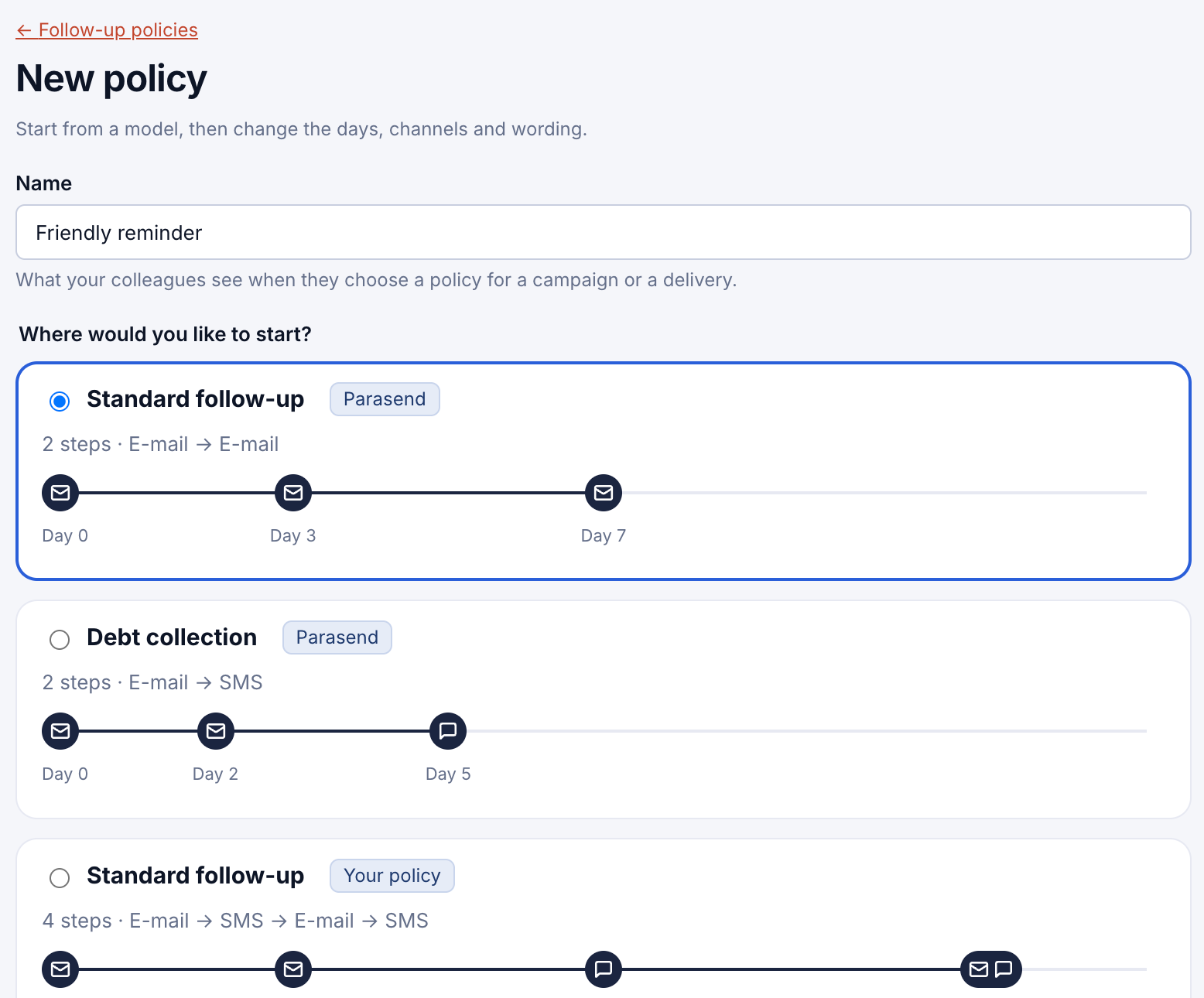
Step 1: Start a new policy
- Open Follow-up policies and click + New policy.
- Give it a Name. Your colleagues see the name when they choose a policy.
- Under Where would you like to start?, choose a model: one of Parasend's policies, one of your own, or Start from scratch. Click Continue.
Step 2: Set up the steps
The Steps card lists the first notice and each reminder. On the right, What the recipient sees shows each step exactly as the recipient will get it, in your company's default brand. It updates as you type.

- Click + E-mail reminder or + SMS reminder to add a step.
- Drag a step by its handle to reorder it.
- Click a step to open it and change it.
The first notice is sent as the delivery says (e-mail, SMS or both); its wording isn't changed here.
Step 3: Change a step

| Setting | What it does |
|---|---|
| Day | How many days after the first notice the reminder goes. |
| Channel | E-mail or SMS. |
| Sent only if | Always receipt isn't confirmed. You can add the e-mail wasn't opened. |
| Wording | Choose the language tab (Icelandic or English), then Parasend's Standard reminder, Firmer reminder or Final reminder. To use your own words, fill in Subject, Heading and Text, or pick a template under Choose a saved wording. |
Click a placeholder under Insert to add it to the text. When the reminder is sent, it is replaced with the delivery's details:
| Placeholder | Becomes |
|---|---|
{name} / {first name} |
The recipient's full name / first name |
{sender} |
Your company's name |
{title} |
The delivery's title |
{sent on} / {expires on} |
When the delivery was sent / when it expires |
{files} |
The number of documents |
The button to open the delivery, how to confirm and Parasend's footer are always included, so a reminder always works.
Step 4: Test and save
- Click Send the whole sequence to me to get every e-mail step in your inbox, with "Test -" before the subject. You can send up to 5 tests an hour.
- Under Options, tick Default for new campaigns and deliveries if this policy should be filled in automatically.
- Click Create policy (or Save when editing).
Every saved change makes a new version. Deliveries already sent keep the version they were sent with; the evidence records which version was used.