
Add and manage passkeys
A passkey lets you sign in with Face ID, your fingerprint or your device PIN, without your electronic ID. The passkey stays on your device (or its keychain) and never reaches Parasend.
A passkey carries the verification it was set up after. A passkey added after signing in with an electronic ID signs you in at that level.
Open Security
Click your name at the top right and choose Security.

Add a passkey
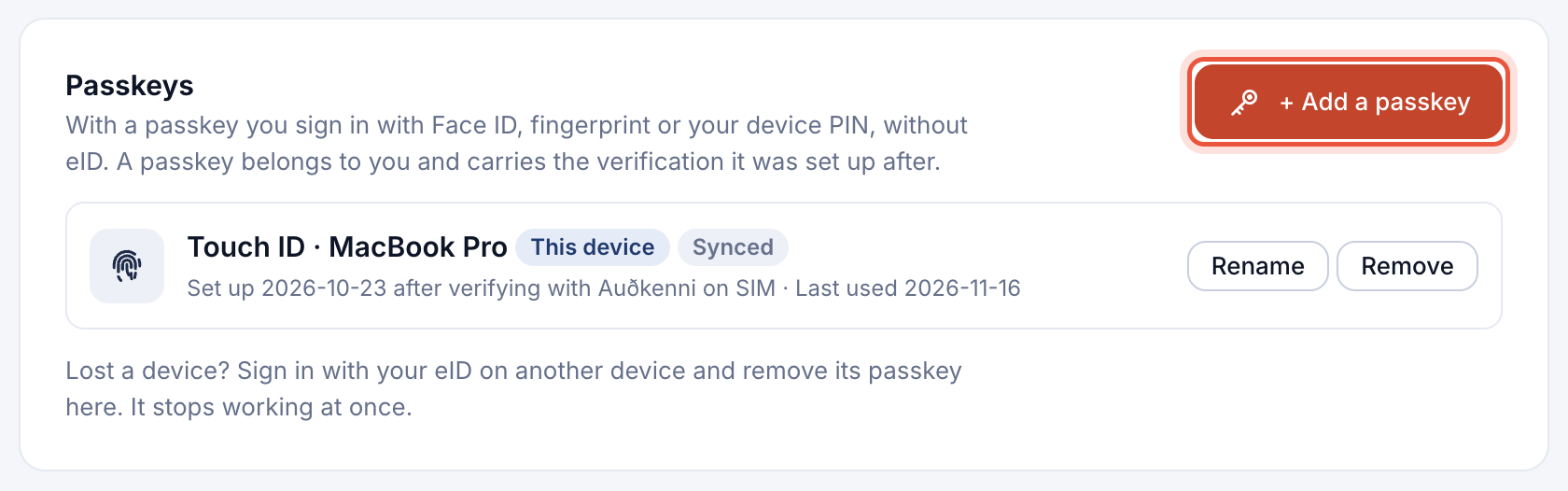
- Under Passkeys, click + Add a passkey (on a Mac or iPhone it may say + Turn on Touch ID on this device or Face ID).
- Confirm it's you when asked. A new passkey always rests on a fresh confirmation.
- Follow your device's prompt. You see Passkey added.
Passkeys marked Synced are saved in a keychain that follows you to your other devices, such as iCloud Keychain or Google Password Manager. You can have up to 10 passkeys.
Rename or remove a passkey
- Click Rename to give a passkey a name you recognise, such as "Work laptop".
- Click Remove and confirm. The passkey stops working at once, and any sign-ins it opened end.
Lost a device? Sign in with your electronic ID on another device and remove the lost device's passkey here. You can't remove your only passkey if it is your only way in: add another one first.
What this browser remembers
Under This device you can make the browser forget what it keeps for you, without signing out:

- Remember my details: your sign-in method and phone number, if you ticked Remember my details when signing in.
- Greeting by name: your name and a masked personal ID number, so the sign-in page can greet you and offer your passkey first.
- Cookies: your choice of analytics and marketing cookies. Click Change to update it.