
Create a brand profile
A brand profile decides how your notifications and the recipient's page look: your name, logo, colours and layout. You can have several, for example one per department, and choose one for each delivery. Each delivery keeps the version it was sent with.
Who can do this: the owner and admins (the right Manage brand profiles). The look comes with every plan; your own link domain and e-mail sender come with Plan 1 and up.

Create a brand profile
- Open Brand profiles and click + New brand profile.
- Under The profile, give it a Name only you see, such as "Collections". Tick The company's default brand profile if deliveries that name no profile should get this one.
- Under The sender, enter the Sender name as recipients should see it, and optionally its Icelandic dative form ("Sending frá …"), a support e-mail, phone and page.
- Under Logo and header, upload your Logo (PNG or SVG, up to 1 MB) and optionally a Browser tab icon. Choose the header style: Band, Letterhead or Minimal.
- Under Colours, choose your Brand colour and any other colours. Each colour pair must have a contrast of at least 4.5:1 (WCAG 2.2 AA) so everyone can read it; otherwise saving is refused.
- Under Shape and font and Page layout, choose rounding, font and layout (Card, Split, Banner or Backdrop, the last three with a photo).
- Check the Preview on the right: the recipient page and the e-mail, in Icelandic and English, on a computer and a phone. Click Send test e-mail to see it in your inbox.
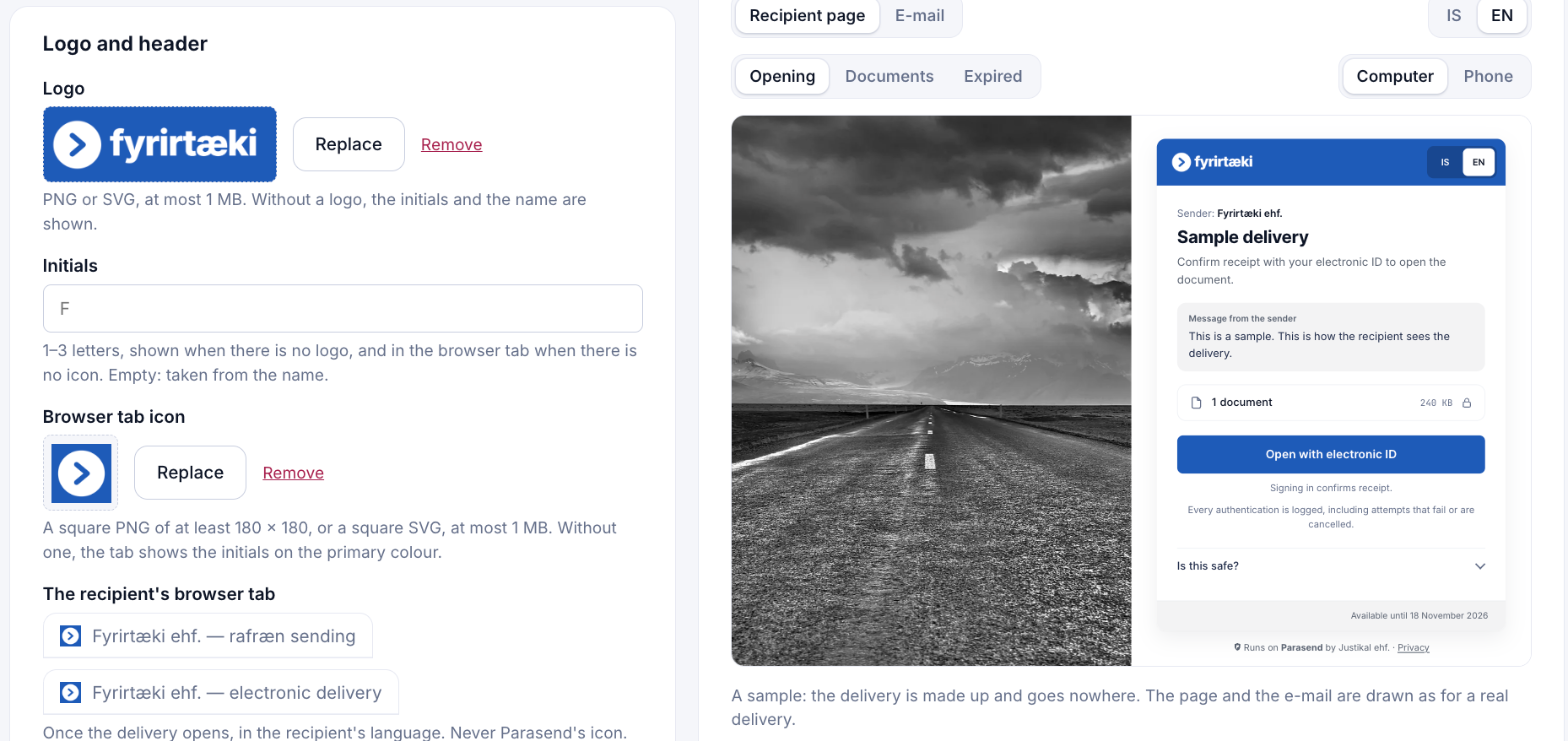
- Click Save as a new version.
What recipients see
Your brand is used on the notification e-mail and on the page where the recipient opens the delivery.

Some things are always shown, whatever the profile says: the sender's name, "Signing in confirms receipt", that every sign-in is recorded, and "Runs on Parasend" at the foot. This helps recipients trust the delivery.
Change or archive a profile
Click Edit in the list, change what you need and Save as a new version. Deliveries already sent keep their version. To stop using a profile, click Archive.